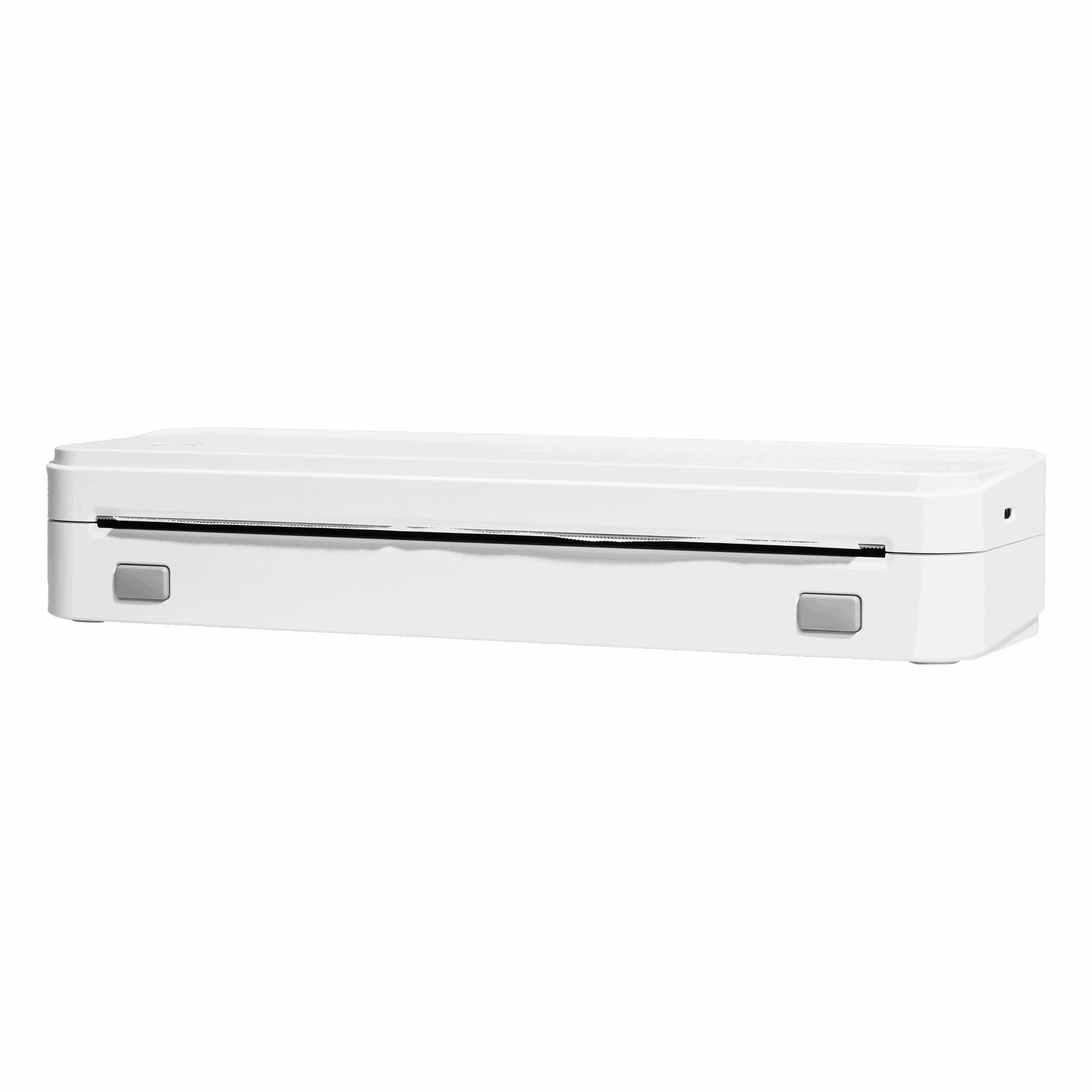
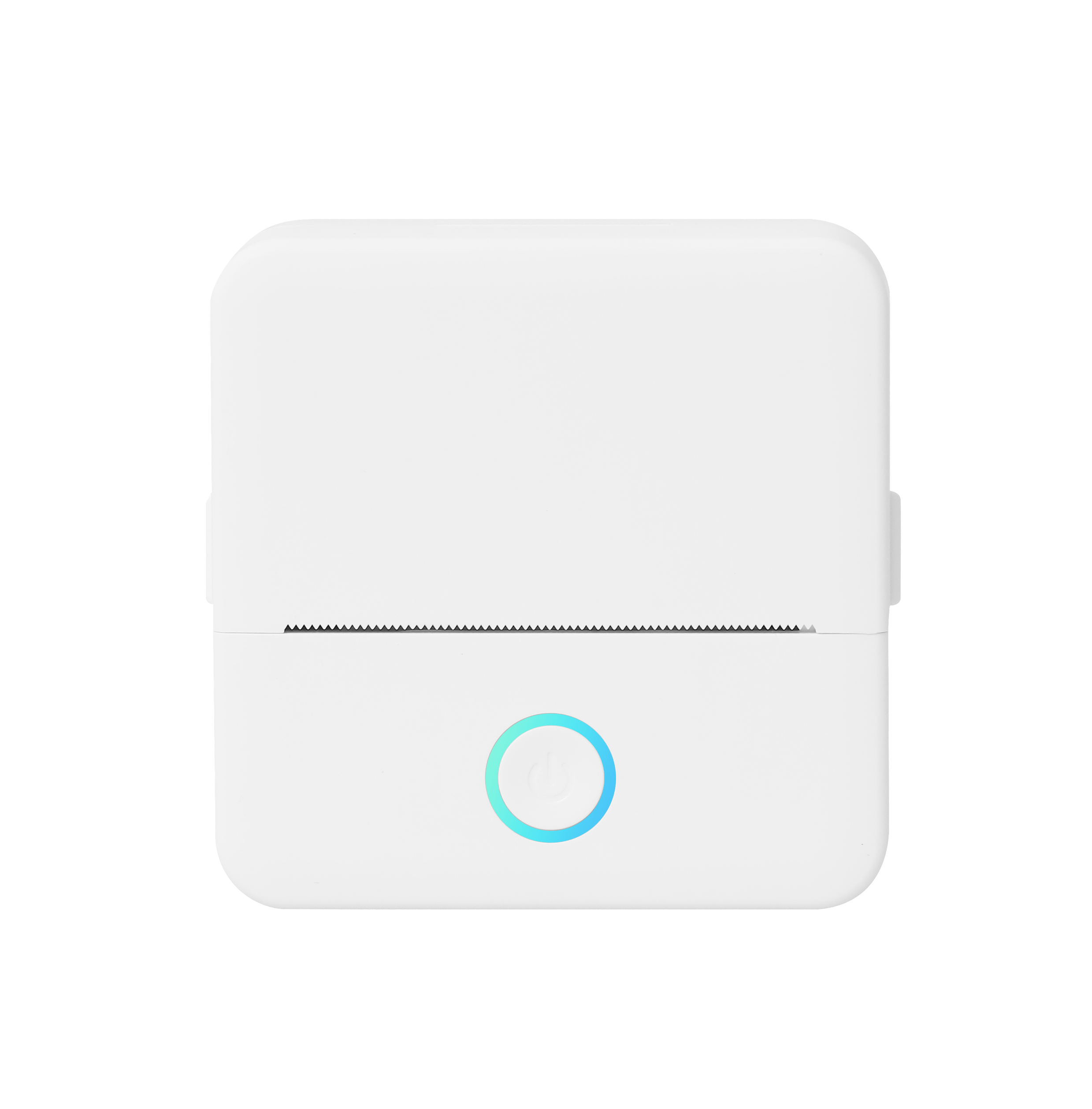
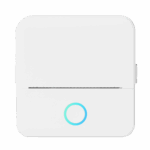
Thermal Printers

You can download the latest drivers and apps for our products below.
If you need further assistance, visit our Contact Page.

Download the App
CorePrint-App Logo 4

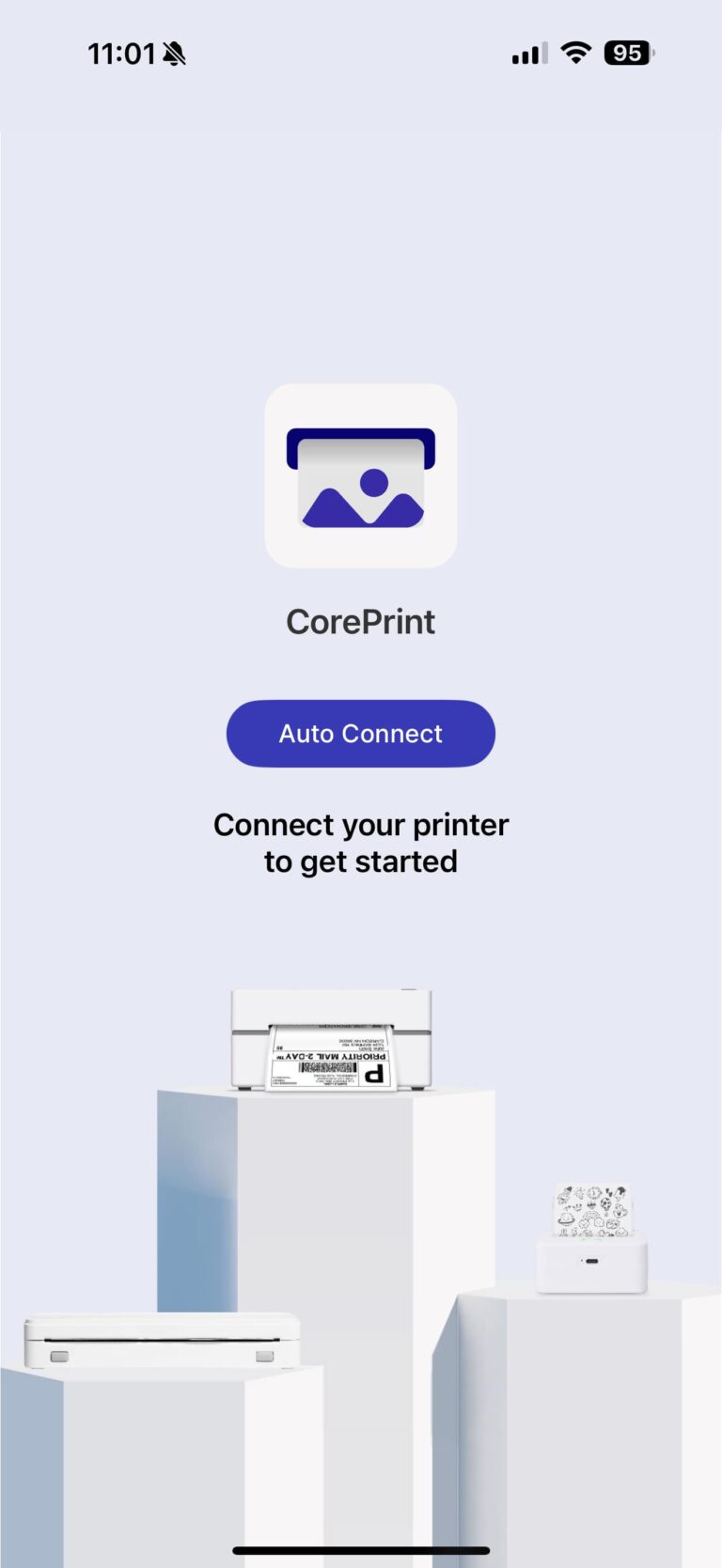
Download the CorePrint App

Compatible Models: CTP500, CTP100LG, CTP800BD/CTP750BY, CPLM10

Download Drivers for your Printer

If you wish to print from your computer, please download the corresponding driver below.

How-To Videos

Playlist

5 Videos

CTP800BD/CTP750BY Shipping Printer Driver (Windows)

System Requirements: Windows 7 and above

Version 1.0

CTP800BD/CTP750BY Shipping Printer Driver (Mac)

System Requirements: Mac OS 10.10 and above

Version 1.0

No drivers currently available.

This printer does not require a driver.

FAQs & Troubleshooting

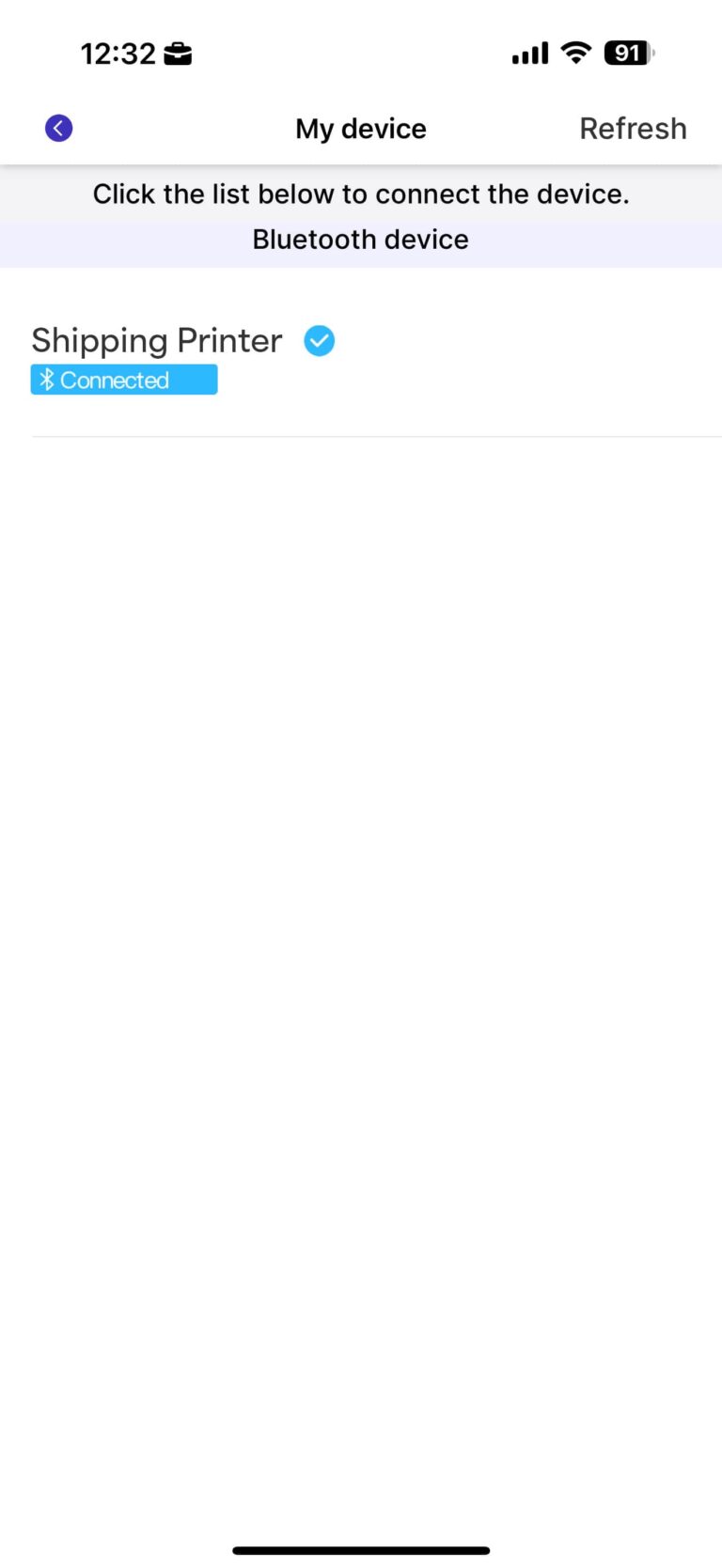
Please charge your thermal printer and ensure Bluetooth® mode is enabled on your smart device. If you are still experiencing Bluetooth® connectivity issues please restart your smart device. Be sure to connect to the thermal printer through the CorePrint app. Remember that the thermal printer can only be connected to one smart device at a time.

Please disconnect from any other smart devices that may be connected to the thermal printer.

Confirm that Bluetooth® mode is enabled and be sure that your smart device is the only device connected. Please be sure to check that you have an adequate amount of Thermal Paper available for printing. If the thermal printer is overheating, please wait for the printer to cool down before use. If you are still unable to print, please power off the printer and power back on, and try connecting to your smart device.

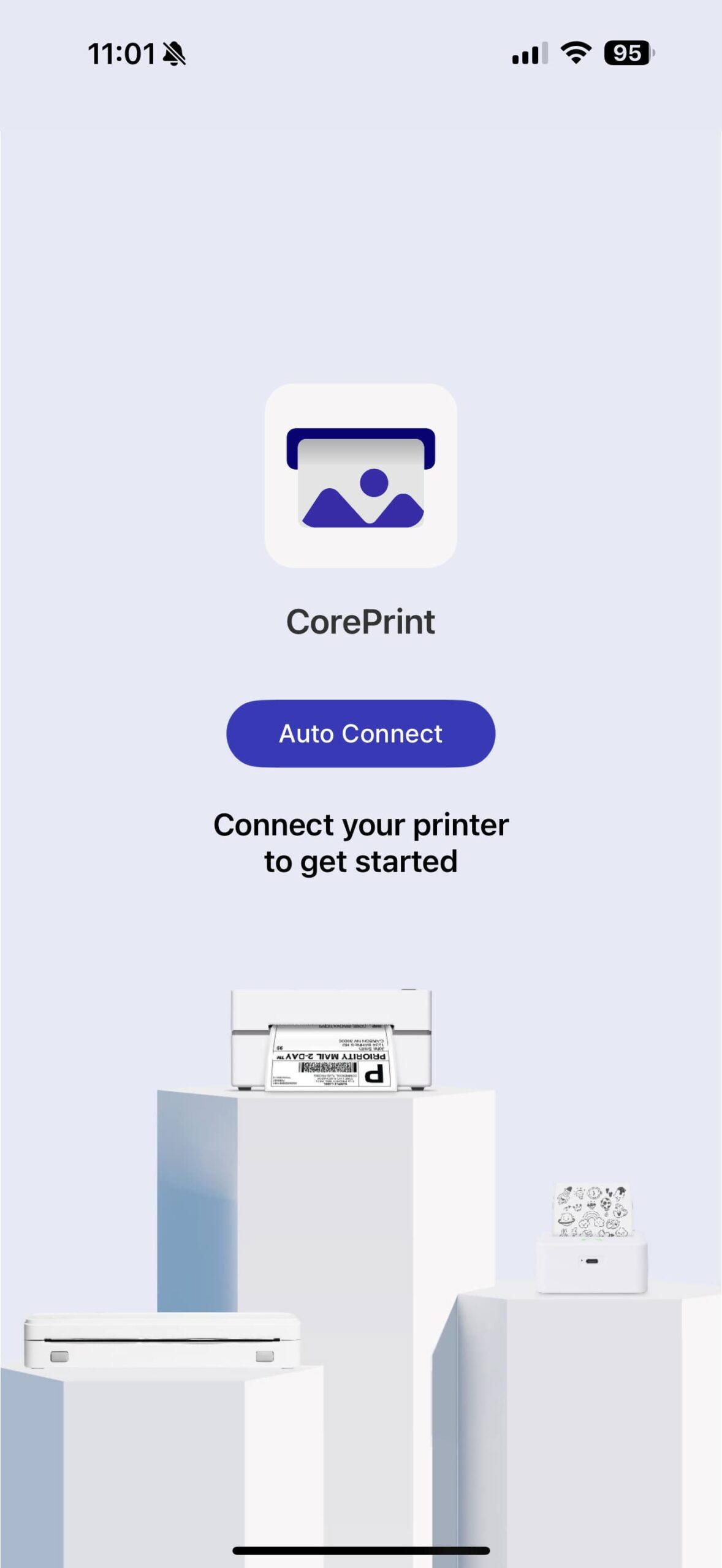
Be sure to follow directions carefully and install printing paper correctly. Please make sure that the paper rolls are placed in the correct direction. Follow the instructions and paper installation card included in the box for the correct paper roll installation setup.

Retry printing by adjusting the contrast settings via the CorePrint app print settings. Please be sure to use compatible Core Innovations Thermal Printer paper. The printing quality from a third-party thermal printer paper cannot be guaranteed and may damage the Core Innovations Thermal Printer.

Please ensure that you have charged your thermal printer. Adjust the printing contrast to the desired amount to create darker prints.

Be sure to use the included USB-C© charging cable and a 5V/2A adapter (not included) to charge your device to full battery prior to printing.

Thermal Printers

CorePrint-App Logo 2

Download the CorePrint App

Compatible Models:
CTP500, CTP100LG, CTP800BD, CPLM10

Download Drivers for your Printer

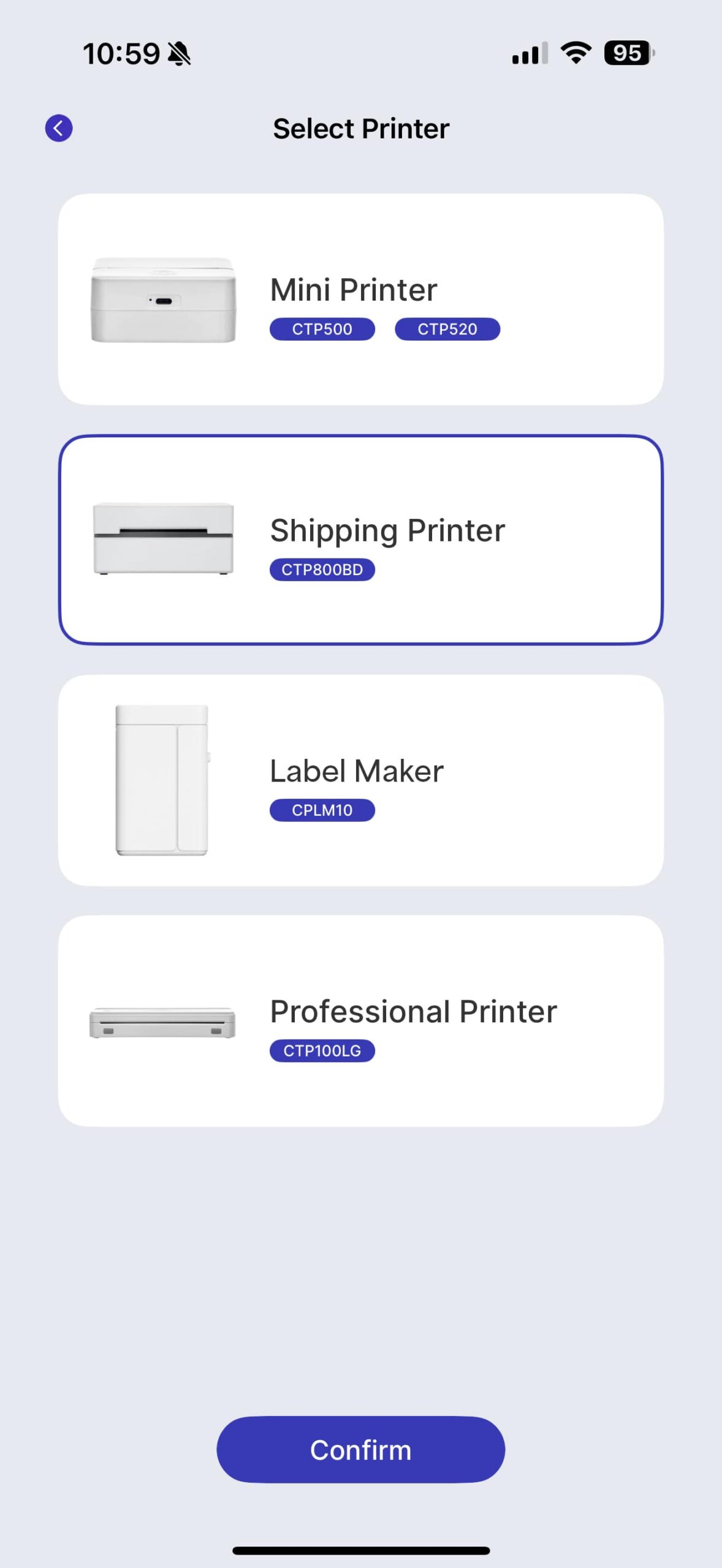
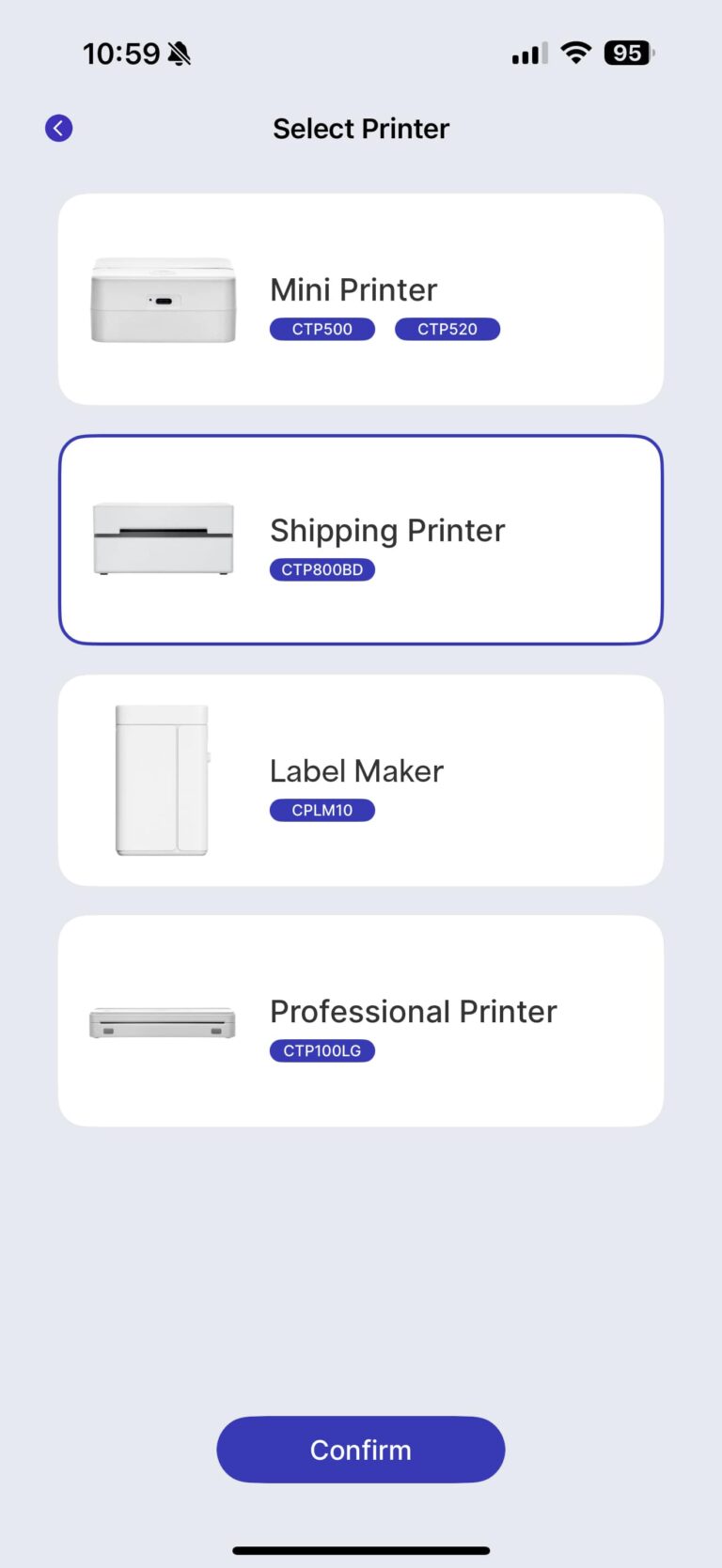
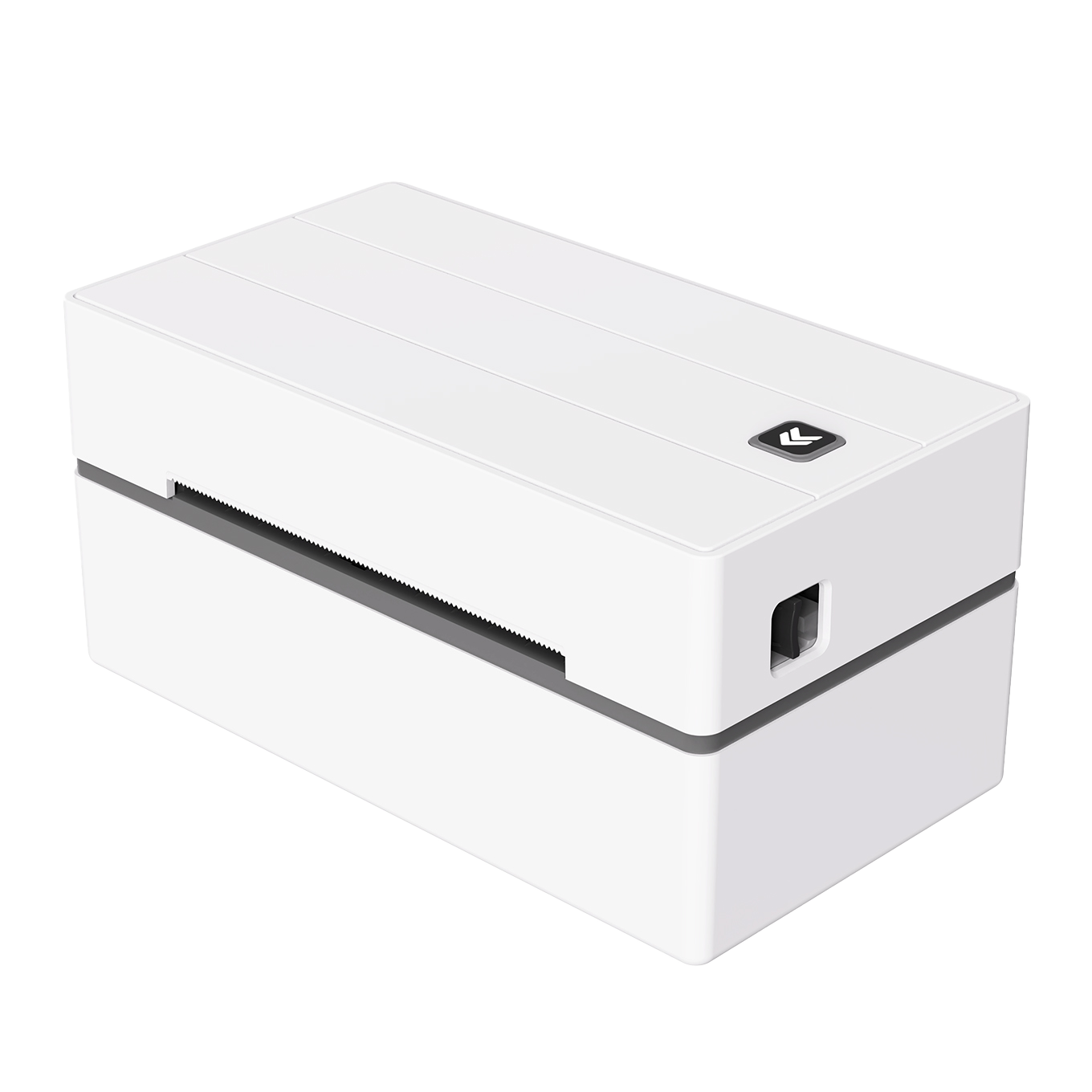
CTP800BD
Shipping Printer

CTP100LG
Professional Printer

No drivers currently available.

CTP500
Mini Printer

This printer does not require a driver.

How-To Videos

Playlist

5 Videos

FAQs and Troubleshooting

Please charge your thermal printer and ensure Bluetooth® mode is enabled on your smart device. If you are still experiencing Bluetooth® connectivity issues please restart your smart device. Be sure to connect to the thermal printer through the CorePrint app. Remember that the thermal printer can only be connected to one smart device at a time.

Please disconnect from any other smart devices that may be connected to the thermal printer.

Confirm that Bluetooth® mode is enabled and be sure that your smart device is the only device connected. Please be sure to check that you have an adequate amount of Thermal Paper available for printing. If the thermal printer is overheating, please wait for the printer to cool down before use. If you are still unable to print, please power off the printer and power back on, and try connecting to your smart device.
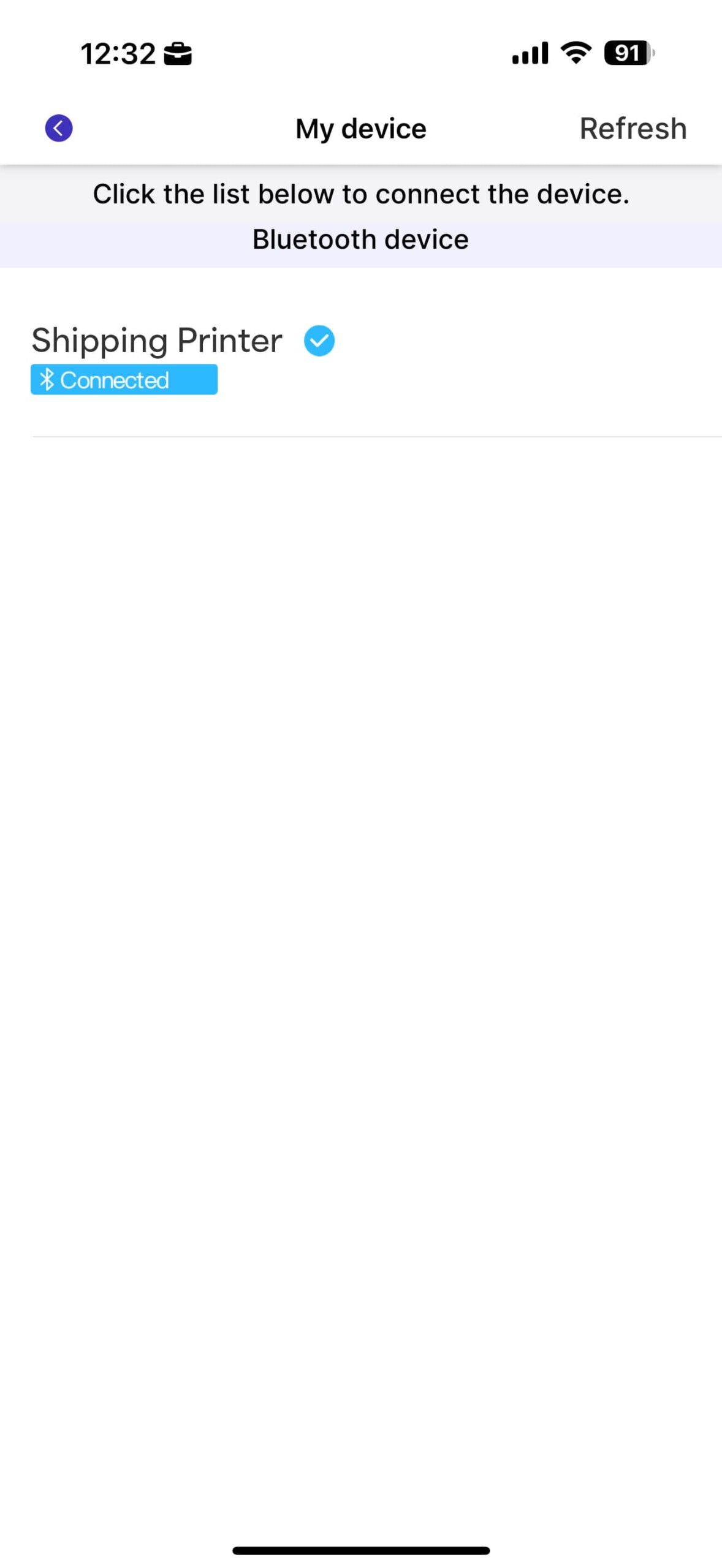
Be sure to follow directions carefully and install printing paper correctly. Please make sure that the paper rolls are placed in the correct direction. Follow the instructions and paper installation card included in the box for the correct paper roll installation setup.

Retry printing by adjusting the contrast settings via the CorePrint app print settings. Please be sure to use compatible Core Innovations Thermal Printer paper. The printing quality from a third-party thermal printer paper cannot be guaranteed and may damage the Core Innovations Thermal Printer.

Please ensure that you have charged your thermal printer. Adjust the printing contrast to the desired amount to create darker prints.

Be sure to use the included USB-C© charging cable and a 5V/2A adapter (not included) to charge your device to full battery prior to printing.